What is it
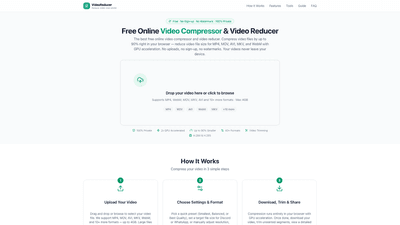
VideoReducer is a free online video compressor and video reducer that runs entirely in your browser. It lets you dramatically shrink video files by up to 90% without uploading your data to any server. By leveraging GPU acceleration through the WebCodecs API and FFmpeg compiled to WebAssembly as a fallback, it processes videos locally on your device, ensuring maximum privacy and security. It supports 40+ input formats (including MP4, MOV, MKV, WebM, AVI) and offers multiple output formats (MP4, WebM, MOV, AVI, MKV), with a maximum file size of 4GB. Key advantages include 100% privacy (no uploads, no tracking, no servers) and a fast, browser-based workflow that works on desktop and mobile devices. The tool also includes a built-in video trimmer and a detailed compression report, plus shareable results for quick collaboration or social sharing.
Use cases for VideoReducer span everyday sharing needs (Discord, WhatsApp, email) to social media uploads (Instagram, TikTok, YouTube) and quick archival. Whether you’re sending a video to a colleague, posting to social networks, or preparing content for messaging apps with strict size limits, VideoReducer helps you hit the right size while preserving readability and playback quality.
Features
- 2x GPU-accelerated encoding via WebCodecs API for blazing-fast compression
- 100% private, browser-based processing (no uploads, no servers, no tracking)
- Supports 40+ input formats and 5 output formats: MP4 (H.264), WebM (VP8), MOV (H.264), AVI (MPEG-4), MKV (H.264)
- H.264 and H.265 (HEVC) codecs available for better compression efficiency
- Up to 90% reduction in file size with smart encoding presets
- Multiple presets and manual controls: Smallest, Balanced, Best Quality; target sizes for Discord, WhatsApp, email, etc.
- Built-in video trimmer for removing unwanted segments after compression
- Compression report with original size, compressed size, reduction percentage, and technical parameters; downloadable as a PNG with share options
- Works in-browser across devices (Chrome, Safari, Edge, Firefox); no app installation required
- 4GB maximum file size (larger files may show estimated processing times)
- Platform-specific presets and guidance for social sharing and format conversion
- Free forever, with no sign-up, credits, or watermarks
How to Use
- Upload Your Video
- Drag and drop or browse to select your video file. Supported formats include MP4, MOV, MKV, WebM, AVI, and many others (40+ total). Up to 4GB per file. Large files may show an estimated processing time based on your device capabilities.
- Choose Settings & Format
- Pick a quick preset: Smallest File (maximum compression), Balanced (great quality with significant size reduction), or Best Quality (minimal quality loss).
- Or set a target file size for specific platforms (e.g., Discord, WhatsApp) and manually adjust resolution, audio, and the output format (MP4, WebM, MOV, AVI, MKV).
- The tool supports both H.264 and H.265 (HEVC) codecs for output, with MP4/H.264 recommended for widest compatibility.
- Download, Trim & Share
- Compression runs entirely in your browser. When finished, download the compressed video, use the built-in Trim feature to cut unwanted parts, and view a detailed compression report. You can also share your results via social media or generate a shareable report image.
How long it takes varies by file size and hardware. For example, a 5-minute 1080p video often completes in 5–15 seconds with GPU acceleration; a 500MB video typically finishes in 30–90 seconds depending on system resources.
Pricing
- Free Forever: VideoReducer offers completely free usage with no sign-up, no credits, and no watermarks.
- No hidden costs: There are no subscription fees or paid tiers. You get access to all features, including presets, manual controls, trimming, and the detailed compression report.
- File size constraint: Each compression supports up to 4GB per file. No server storage or uploading of your videos.
This browser-based model also means no API keys or account management, and your data never leaves your device.
Tips
- Choose the right preset for the scenario:
- Smallest File: Maximum compression (CRF higher, lower bitrate; best for short clips sent via chat).
- Best Balance: Substantial size reduction with good visual quality (suitable for most uses).
- Best Quality: Minimal quality loss (archiving or high-fidelity sharing).
- For platform-specific needs, use Auto mode with a target size to hit common limits (Discord, WhatsApp, email, Instagram, TikTok, YouTube).
- Reduce resolution strategically:
- 4K to 1080p typically halves file size with minimal noticeable quality loss.
- 1080p to 720p can further reduce size with minimal impact for web sharing.
- Frame rate and audio:
- Lower frame rates (e.g., 60fps to 30fps) can reduce size by 30–40% with little perceptible quality change for most content.
- Adjust audio bitrate (e.g., 64–96 kbps for voice; 128–192 kbps for music) or mute if audio isn’t needed.
- Format and codec:
- MP4 with H.264 is the most universally compatible option.
- WebM (VP8) may be more efficient for web-only content.
- Trim before or after compression:
- Use the built-in trim to remove unnecessary segments; stream-copy helps keep processing fast.
- Compression report:
- Review the detailed report after compression to understand the changes in codecs, bitrate, resolution, and more. It can be downloaded or shared to demonstrate results.
Frequently Asked Questions
-
Is my video uploaded to your server? No. All processing happens in your browser using WebAssembly and WebCodecs. Your video never leaves your device, ensuring 100% privacy.
-
What formats are supported for input and output? Input formats include MP4, WebM, MOV, MKV, AVI, and 40+ others. Output formats include MP4 (H.264), WebM (VP8), MOV (H.264), AVI (MPEG-4), and MKV (H.264). H.264 and H.265 (HEVC) are supported.
-
How long does compression take? With GPU acceleration, most videos compress significantly faster than traditional tools. Times vary by file size and hardware, but many common videos finish in seconds to a few minutes.
-
Can I compress videos for Discord or other limits? Yes. There are platform-specific presets for Discord (8MB Legacy, 10MB Free, 25MB Nitro Basic, 50MB Nitro, 100MB Large). You can use Auto mode with a target size to automatically adjust bitrate.
-
Can I trim after compression? Yes. After compression, you can use the Trim Video feature to extract a desired segment from the compressed file.
-
Does this work on mobile? Yes. It works in mobile browsers (Chrome on Android, Safari on iOS). For very large videos (500MB+), a desktop browser may provide better performance and memory availability.
-
Is there a watermark or sign-up required? No watermark, and no sign-up is required. VideoReducer is free to use with all features available.
-
Is it safe to use for sensitive videos? Because processing happens locally in your browser, videos remain private and are not stored on servers. This makes VideoReducer a strong choice for confidential or sensitive content.
This comprehensive, in-browser solution provides a fast, private, and cost-free way to shrink video files, convert formats, and tailor outputs for specific platforms—without the overhead of sign-ups, servers, or watermarks.