What is it
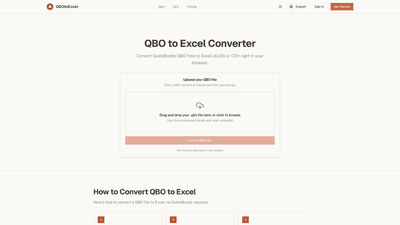
QBO to Excel Converter is a browser-based tool that turns QuickBooks QBO files into Excel spreadsheets (XLSX) or CSV files. Designed for individuals who need to analyze or share QuickBooks bank activity without installing QuickBooks, this utility processes your QBO locally in your browser. It reads the transaction stream from a QBO (or OFX) file and outputs a clean, ready-to-use table of transactions with essential fields. The result can be opened directly in Excel for sorting, filtering, or building custom reports, or imported into other systems that prefer CSV.
Key value propositions:
- Local processing in the browser with no data uploaded to a server
- Quick, single-file workflow for fast results
- Outputs in XLSX or CSV formats, suitable for Excel or other tools
- Supports QBO and OFX inputs, focusing on transaction details needed for reconciliation
Features
- Local, privacy-first processing
- Your QBO file is parsed and converted entirely in your browser; nothing is sent to the cloud.
- Single-file workflow
- Drop one .qbo (or OFX) file and receive a clean, ready-to-download result.
- Flexible output formats
- XLSX: a ready-to-open workbook with a single sheet, ideal for further Excel workbooks, formulas, and dashboards.
- CSV: a plain-text table suitable for databases, scripts, or other accounting tools.
- Core transaction fields extracted
- Date, Transaction Type, Amount, Name, Memo, Transaction ID, Account. These fields cover the essentials for reconciliation and analysis.
- OFX support
- In addition to QBO, OFX input is supported, broadening compatibility with bank statements.
- No QuickBooks installation required
- Convert directly from a QBO or OFX file without owning QuickBooks.
- Clear, task-focused workflow
- Designed for one-file conversions to keep things simple and predictable.
How to Use
- Upload your QBO (or OFX) file
- Drag and drop the .qbo file into the designated area or click to browse from your device.
- Let the converter parse and extract fields
- The tool processes locally and displays how many transactions were parsed.
- Choose your output format
- Select XLSX for Excel-friendly workbooks or CSV for plain-text, easy import into other tools.
- Download the result
- After conversion, download the XLSX or CSV file directly to your device. Open in Excel or import into your preferred system.
- Use cases in mind
- Open in Excel to filter, sort, and build reconciliation or cash-flow reports; share a clean, readable table with your accountant; or feed data into other accounting software or databases.
Notes:
- The current version handles a single QBO (or OFX) file at a time for a straightforward, predictable workflow.
- The conversion runs entirely locally, preserving privacy and reducing setup friction.
- No bank connections or QuickBooks installation required.
Pricing
- Free to use today
- The service is provided at no cost with local processing and no installation requirements.
- Current scope and roadmap
- The current version focuses on converting one QBO/OFX file per operation.
- Roadmap includes batch workflows for multiple files and a paid Pro plan for higher-volume use in the future, expanding beyond the single-file limitation.
Tips
- Choose XLSX when you plan to do extensive Excel work
- XLSX outputs come as a single Excel sheet, making it easy to apply formulas, pivots, and summaries for monthly reports or cash-flow views.
- Choose CSV for compatibility and data portability
- CSV is a lightweight, unformatted table ideal for databases, scripts, or importing into other accounting tools.
- Understand the extracted fields
- The included columns (Date, Transaction Type, Amount, Name, Memo, Transaction ID, Account) cover typical reconciliation needs. If you require additional columns, you can always augment the workbook in Excel.
- Prepare for reconciliation
- Use the Date and Amount to align entries with bank statements; use Name and Memo to identify payees and notes; Transaction ID helps with traceability.
- Protect privacy
- Since processing happens in the browser, your financial data does not leave your device unless you choose to share it.
- Keep the original file safe
- Always retain your original QBO/OFX file as a source of truth before converting, in case you need to re-run the process with updated data.
- Plan for future needs
- If you routinely convert multiple files, anticipate the upcoming Pro plan in the roadmap for batch processing and higher-volume usage.
Frequently Asked Questions
- How do I convert a QBO file to Excel?
- Upload the QBO file, let the tool parse it locally, choose XLSX, and download the resulting workbook ready for Excel.
- How do I convert QBO to CSV?
- Upload the QBO file, select CSV as the output format, and download the plain-text table suitable for databases or other tools.
- Do I need QuickBooks to use this?
- No. The converter runs in your browser and does not require a QuickBooks installation.
- Is my data safe?
- Yes. All processing happens locally in your browser; nothing is uploaded to a server.
- What fields are in the output?
- The typical output includes Date, Transaction Type, Amount, Name, Memo, Transaction ID, and Account.
- Is it free?
- Yes, this tool is free to use with current single-file processing. Future plans may introduce paid tiers for batch processing.
- Can I convert multiple QBO files at once?
- The current version handles one file per conversion. Batch processing is on the roadmap as a paid Pro plan.
- Does it work with OFX files?
- Yes, the converter supports OFX input in addition to QBO.
- What is the difference between XLSX and CSV outputs?
- XLSX is ideal for Excel workbooks with a single sheet; CSV is a lightweight, plain-text format suitable for imports into various tools and databases.
This QBO to Excel Converter delivers a focused, privacy-conscious solution for turning QuickBooks QBO (and OFX) files into actionable spreadsheets. It’s a practical, cost-free option for monthly reconciliation, data sharing with accountants, and building clear cash-flow or transaction reports, all without needing QuickBooks or server-side processing.