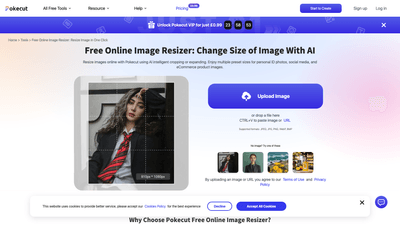
What is it
Pokecut Free Online Image Resizer is an AI-powered, all-in-one online tool designed to resize images quickly while preserving quality. Leveraging intelligent cropping and expanding, it lets you adjust images to a wide range of preset sizes for personal IDs, social media, and e-commerce product images. You can enhance image quality first with a built-in AI Photo Enhancer, then resize with pixel-precise control to maintain sharp details. The service supports bulk resizing (up to 50 images at once), making it an ideal solution for creators, marketers, and storefronts who need consistent, publication-ready visuals across platforms. Best of all, it’s available as a free online tool, with an optional VIP upgrade for additional benefits.
Features
- AI Photo Enhancer and Smart Resize
- Improve image clarity before resizing to prevent blur and preserve sharpness.
- Pixel-level precision keeps important details intact during resizing.
- AI Intelligent Cropping and Background Expansion
- When changing aspect ratios, the AI identifies content and fills background seamlessly, producing natural, distortion-free results.
- Generative fill extends backgrounds so resized images look complete and balanced.
- All-in-One Presets for Common Use Cases
- Ready-to-use dimensions for social media (Instagram, Facebook, YouTube, and more) and personal IDs.
- E-commerce-ready presets to meet platform specifications (e.g., Amazon, Shopify).
- Bulk Image Resizer
- Upload up to 50 images simultaneously and apply consistent settings for a uniform catalog or batch social posts.
- Wide Format Support
- Upload and resize JPG/JPEG, PNG, WebP, and BMP images with ease.
- Free to Use with Optional VIP Upgrade
- The core resizing and enhancement features are available for free.
- VIP upgrade is offered for £0.99, unlocking additional capabilities as listed on the site.
- Flexible Output and Post-Edit Options
- After resizing, apply filters, stickers, or text and download the finished image.
How to Use
- Upload or paste your image
- Click the upload button or drop a file to bring your image into Pokecut for resizing. You can also paste an image URL or press CTRL+V to paste an image from the clipboard.
- Enhance and resize
- Use the AI Photo Enhancer to improve clarity first, then choose your target size or a preset. You can adjust pixel dimensions directly or select from preset pixel sizes for your intended platform.
- Download and publish
- After resizing, download the image to your device. Optional editing tools (filters, stickers, text) are available before download to tailor the final look. For bulk projects, start the batch resize to process multiple images efficiently.
tips for best results
- Start with the enhancer for maximum sharpness, especially if enlarging a small image.
- Use the smart resize and background extension when changing aspect ratios to avoid stretching or awkward crops.
- Apply platform-specific presets to ensure compliance with social media or marketplace image guidelines.
Pricing
- Free: Core online image resizing and AI enhancement features are available at no cost.
- Pokecut VIP: £0.99. A VIP upgrade is available to unlock additional benefits as described on the pricing page.
This pricing structure keeps the essential image resizing capabilities accessible to everyone while offering an affordable premium option for users who want expedited processing or extra features.
Tips
- Always enhance first, then resize to minimize loss of clarity and keep lines and text sharp.
- Use bulk resizing to standardize your catalog imagery, saving time for product listings or social campaigns.
- Leverage presets for quick publishing across social channels and marketplaces.
- When enlarging images, test a small batch first to verify that details stay crisp and backgrounds remain natural.
- For ID or passport photos, rely on precise dimension controls and verify any platform-specific guidelines before printing or submitting.
Frequently Asked Questions
-
How can I ensure my resized images stay high quality?
- Begin with the AI Photo Enhancer to sharpen details, then resize. Enlarge with care—Pokecut’s AI helps preserve clarity and can even outperform the original in some cases.
-
Can I resize multiple images at once?
- Yes. Pokecut includes a bulk image resizer that supports uploading up to 50 images in a single batch with consistent settings.
-
Which file formats are supported?
- JPEG, JPG, PNG, WebP, and BMP are supported for uploading and resizing.
-
Can I make images bigger using this tool?
- Yes. You can increase pixel dimensions, and Pokecut’s AI Image Extender helps fill in the background to maintain a natural look when expanding the canvas.
-
Is the tool completely free?
- The core resizing and enhancement features are free. A VIP upgrade is available for £0.99, offering additional benefits as listed on the pricing page.
-
How do I ensure privacy and terms?
- By uploading images, you agree to Pokecut’s Terms of Use and Privacy Policy. Always review these policies if you’re handling sensitive or proprietary visuals.
-
Are there preset sizes for platforms and IDs?
- Yes. The tool includes presets tailored for social media, e-commerce product images, and ID/photo printing needs.
-
Where can I get more information or support?
- Visit Pokecut’s site for detailed feature descriptions, help resources, and terms. The FAQs and pricing pages provide guidance on usage and options.
This AI-powered image resizer delivers a practical, time-saving solution for creators and businesses that require fast, reliable image optimization. With smart resizing, background-aware expansion, and bulk processing, Pokecut helps you produce consistent, publication-ready visuals for social media, e-commerce, and official documents—without complicated software or steep costs.