What is it
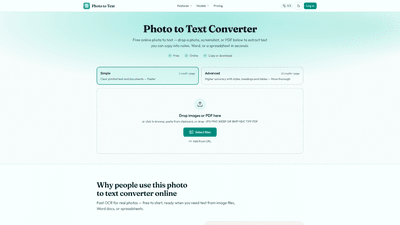
Photo to Text is a free online OCR (optical character recognition) tool designed to convert images, screenshots, and PDFs into editable text in seconds. By uploading a photo, document scan, or PDF, you can extract the words and paste them into Word, Notes, or spreadsheets without retyping. The platform supports a wide range of input formats (JPG, PNG, WEBP, GIF, BMP, HEIC, TIFF, PDF) and offers two OCR modes to match the quality of your image: Simple for clear shots and Advanced for challenging pages, such as blurry photos, skewed pages, crowded layouts, or tables. With additional dedicated converters, you can immediately transform images into Word or Excel files or extract tables directly into spreadsheets.
Features
- Supports multiple input formats: JPG, PNG, WEBP, GIF, BMP, HEIC, TIFF, PDF, and more.
- Two OCR modes:
- Simple: fast, ideal for clear photos and clean screenshots.
- Advanced: higher accuracy for tricky images, including tilted pages, handwriting, and dense layouts.
- Layout-aware and table-friendly: Advanced mode improves handling of headings, tables, and column layouts, making it easier to pull data into Excel.
- Output versatility:
- Copy editable text directly to your clipboard.
- Download results as DOCX, Markdown, or TXT.
- Open specific conversions like JPG to Word or JPG to Excel for structured documents and spreadsheets.
- Dedicated converters:
- Open JPG to Word for inserting images, extracting plain text, or preserving Markdown styles in Word.
- Open JPG to Excel for receipts, screenshot tables, and scanned sheets (download XLSX, CSV, or TSV).
- No sign-up required to start: you can convert files immediately; signing in enables result history and longer-term storage.
- Privacy-focused: guest conversions do not store results or data; signing in saves results which you can delete anytime. Unused results are automatically cleared after about 14 days.
- OCR model options: DeepSeek OCR and GLM OCR offer additional model-based extraction for complex documents.
How to Use
- Upload or drop your file
- Drag and drop a JPG, PNG, WEBP, GIF, BMP, HEIC, TIFF, or PDF into the converter, or click to browse. You can also paste from clipboard or open from a URL.
- Choose your OCR mode
- Start with Simple for straightforward images.
- Switch to Advanced if the page is blurry, tilted, densely formatted, or contains tables and headings you want to preserve.
- Run OCR and extract text
- The tool processes the image or PDF online and converts it into editable text. For structured needs, switch to the dedicated Word or Excel paths (e.g., Open JPG to Word or Open JPG to Excel) to preserve layout and export to DOCX or XLSX.
- Copy, download, or continue editing
- Copy the resulting text to Word, Docs, or emails, or download as DOCX, Markdown, or TXT. If you need a formatted Word file with embedded images or preserved styles, use the Word-compatible conversion path.
- For spreadsheets, use the Excel conversion to extract tables into editable rows and columns (XLSX, CSV, TSV).
- Manage your results
- If you sign in, you can save and manage your results. Guest users won’t have long-term storage, but you can still perform quick conversions. Unused results are cleared automatically after roughly 14 days.
Pricing
- Free tier: Start with basic OCR for quick extractions using Simple mode.
- Paid credits: 1 credit per page for Simple OCR; 10 credits per page for Advanced OCR. Credits unlock higher accuracy and more robust layout-aware extraction.
- Additional benefits: Access to dedicated converters (JPG to Word, JPG to Excel, PDF to Text/Word/Excel) and various output formats.
- See pricing for more details: Credits, bundles, and any subscription options are listed on the pricing page. No sign-up is required for guest conversions, but signing in provides result history and the option to purchase credits or manage saved results.
Tips
- Choose Simple for clear, high-contrast images (e.g., clean screenshots or scanned pages with sharp text).
- Use Advanced when dealing with blur, skew, complex layouts, or handwritten text.
- For tables and data, prefer Open JPG to Excel to extract grid data into editable spreadsheets.
- If you need a formatted Word document, use the Word-specific conversion or preserve formatting when downloading to DOCX.
- Always review the extracted text for formatting discrepancies, especially in dense documents or multi-column pages.
- Protect privacy by using guest mode for quick tasks; sign in if you want to save and manage results. History and data retention policies help you control what’s stored.
- For PDFs, both text-based and scanned PDFs are supported. If your PDF is an image-only scan, OCR will extract the text after processing.
- Use URL input to fetch images hosted online, facilitating quick extractions without downloading.
Frequently Asked Questions
-
Is this photo to text converter free? Yes. You can start for free without signing up. Free conversions are available, and paid credits unlock higher-volume usage and Advanced mode.
-
Do you store my images? Your privacy is protected. Guest conversions are not stored as account history. If you sign in, you can save results and delete them anytime. Unused results are cleared automatically after about 14 days.
-
Can I copy text from image results into Word? Yes. After OCR finishes, you can copy with formatting or download as DOCX, Markdown, or TXT. There are also dedicated paths to open JPG to Word for enhanced formatting.
-
Can I turn a photo of a table into Excel? Yes. Use JPG to Excel to extract tabular data into a spreadsheet (XLSX, CSV, TSV). Advanced OCR helps preserve row/column structures and data integrity.
-
Does it support PDF, JPG, and PNG? Yes. The tool supports common formats including PDF to Text/Word/Excel, JPG to Word/Excel, PNG to Text, and other formats like WEBP, HEIC, and TIFF for image-to-text extraction.
-
When should I use Advanced instead of Simple? Use Simple for clear photos and screenshots. Choose Advanced when the image is hard to read—blurry, tilted, crowded, or containing complex tables that you want to export to Excel.
-
Do I need an account to extract text from an image? No sign-up is required for immediate conversions. Signing in enables result history and the ability to manage saved results and credits.
-
What output formats are available? You can copy text directly, or download as DOCX, Markdown, or TXT. For structured outputs, use JPG to Word or JPG to Excel to get Word or Excel files.
-
How accurate is the OCR? Accuracy depends on image quality and layout complexity. Simple mode is fast for clear text, while Advanced mode uses more sophisticated processing to handle tricky layouts and tables.
This Photo to Text solution delivers fast, reliable image-to-text conversion with flexible modes, output formats, and dedicated document-oriented paths. Whether you need a quick copy from a photo, a Word-ready document, or a structured Excel sheet from a table, it provides an accessible, privacy-conscious OCR workflow that fits both quick tasks and more demanding data extraction needs.