What is it
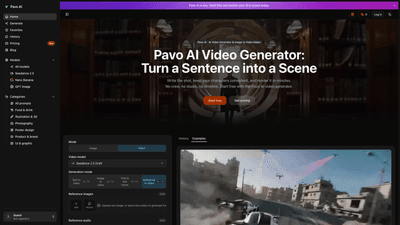
Pavo AI is a live AI Video Generator and Image to Video Maker designed to turn text prompts into fully rendered scenes in minutes. With Pavo AI, you can write a sentence or scene description and automatically generate visuals without assembling a crew, renting a studio, or managing timelines. The platform supports both text-to-video creation and image-to-video workflows, using advanced models such as Seedance 2.5 to draft and render scenes. You can guide the video with reference assets (images, audio, or even a reference video) to maintain character continuity and visual style across scenes. Outputs include common formats like MP4 or MOV, and the tool provides multiple aspect ratios and resolution options to fit social, film, or marketing needs. Start free to test the generator and render your first scene today.
Features
- Text-to-video generation: Write a scene description and generate a cohesive video directly from prompts, with character consistency across frames.
- Image-to-video generation: Upload reference images to steer visuals and composition for your scenes.
- Video model and draft modes: Seedance 2.5-based generation with a DraftGeneration workflow to iterate quickly.
- Reference assets integration: Attach reference images, audio (rhythm/voice), and even reference video to guide motion, timing, and sound.
- Prompt history and asset reuse: Click a reference asset to drop it into your prompt, enabling iterative refinement and reuse of elements.
- Adaptive aspect ratios: Support for multiple aspect ratios to suit different platforms (e.g., social, cinematic, or vertical formats).
- Output formats and durations: Export as MP4 or MOV with configurable duration and resolution options.
- AI-generated audio: Optional AI audio that matches the video for rhythm and voice cues.
- No traditional production setup required: Create scenes quickly without crews, studios, or lengthy timelines.
- Free credits with sign-in: Begin with free credits to experiment; credits are refunded if generation fails, and additional credits unlock more generations.
How to Use
- Sign in and start free: Create an account to access free credits for initial generations. If you run out of credits, sign in to receive additional free credits, and note that credits are refunded if a generation fails.
- Choose your workflow: Select Text to Video or Image to Video depending on whether you want to script a scene or guide visuals with imagery.
- Craft your prompt or upload references: Write a concise scene description or upload reference images, audio, or a reference video to steer style, motion, and pacing.
- Configure assets and output: Pick an aspect ratio (adaptive options), select output format (MP4 or MOV), and set the desired resolution and length (e.g., 5s, 15s, 30s, etc.).
- Generate and review: Run the generation, review the result, and refine the prompt or add more references as needed.
- Export and reuse: Export the final video and, if desired, reuse assets in future prompts via the history/prompt library for efficient iteration.
Pricing
- Free tier and credits: Pavo AI offers a free starting tier to try the platform. Credits are consumed by generations and are refunded if the generation fails. Sign-in is required to access free credits.
- Paid plans: A pricing page is available for more details on paid credits or subscription options beyond the free tier. The exact plan names and prices may vary over time, so refer to the official Pricing page for the latest information.
- How credits work: Each generation consumes a certain number of credits. If a generation fails, credits are automatically refunded. Your credit balance is shown in your dashboard, helping you manage workflows and budgets.
Tips
- Start with a clear, concise prompt: A precise scene description reduces ambiguity and speeds up rendering quality.
- Use reference assets to anchor style and continuity: Upload images for character design, environment textures, and color palettes.
- Leverage audio references: If your project needs rhythm or voice cues, attach an AI audio reference to sync audio with motion.
- Experiment with aspect ratios: Use 16:9 for cinematic, 9:16 for social reels, and 1:1 for grid posts to maximize platform compatibility.
- Iterate with drafts: Use the DraftGeneration mode to quickly prototype scenes before committing to full renders.
- Reuse prompts and assets: The history and prompts feature lets you reuse successful elements in new scenes, saving time.
- Monitor credits: Manage your budget by balancing prompt length, asset complexity, and desired output resolution. Sign in to access free credits and avoid mid-project interruptions.
Frequently Asked Questions
-
What is Pavo AI? A web-based AI Video Generator and Image to Video Maker that converts text prompts and/or reference assets into video scenes, with optional AI audio and multiple aspect ratios.
-
Do I need prior video production experience? No. Pavo AI is designed to simplify video creation by removing the need for a crew, studio, or traditional timeline management; users with varied experience levels can produce results quickly.
-
What inputs can I use? You can use text prompts to describe scenes, upload reference images, upload audio for rhythm/voice references, and optionally provide a reference video to guide motion.
-
What formats and resolutions are supported? Output formats include MP4 and MOV. Resolution and aspect ratio options are available to fit different use cases, including adaptive ratios like 16:9 and 9:16.
-
How does the pricing and credits work? There is a free tier with initial credits upon signing in. Credits are consumed per generation and are refunded if a generation fails. For more ongoing usage, check the official Pricing page for paid options.
-
Is there customer support? Yes. For assistance, you can reach the support team at [email protected].
-
Can I maintain character continuity across scenes? Yes. The platform emphasizes character consistency within a project as you render scenes, especially when using prompts with stable character references and assets.
-
How long does rendering take? Rendering times are typically minutes per scene, depending on prompt complexity, asset usage, and chosen resolution.
-
How can I learn more or get help? Use the built-in prompts, reference assets, and project history to iterate. For additional help, contact support via the provided email or visit the pricing page for plan specifics.
-
Who is the target audience for Pavo AI? Content creators, marketers, designers, and teams seeking rapid, cost-effective video generation without a traditional production pipeline, as well as individuals looking to prototype scenes quickly using AI.