What is it
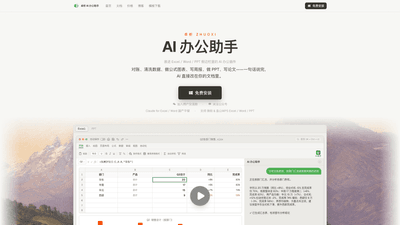
ZHUOXIAI Office Assistant is an AI-powered plugin that installs directly into your familiar Office ecosystem—Excel, Word, and PowerPoint—and also supports the desktop versions of WPS. Think of it as a smart AI sidebar that lives inside your documents: it can perform data reconciliation, data cleaning, build formulas and charts, draft weekly reports, generate PowerPoint content, and even assist with academic papers. In short, the AI is embedded in your documents, so complex tasks are executed inside the files you’re working on. The product emphasizes a seamless, “one assistant for your main office software” experience, with free installation and an active user community accessible via chat groups and official channels.
Key value propositions:
- Works across Microsoft Excel, Word, PowerPoint and WPS Tables/Words/Presentations on desktop.
- Provides an integrated AI assistant inside your documents for data tasks and content creation.
- Supports domestic AI models (Claude for Excel/Word and related local alternatives) alongside international options, enabling flexible AI capabilities.
- Aimed at making routine office work faster: data cleaning, reconciliation, charting, reporting, and writing tasks all inside your existing workflow.
Features
- AI assistant integrated into Excel, Word, PowerPoint (and WPS equivalents)
- Appears as a side panel or within a tab, enabling natural-language interaction without leaving your document.
- Data cleaning and preparation
- Remove duplicates, trim spaces, convert text to numbers, fill missing values, and standardize fields across dozens of sheets with simple prompts.
- Data reconciliation and validation
- Standardize dates (e.g., YYYY-MM-DD), align multiple sheets, check for anomalies, and surface issues for quick correction.
- Financial modeling and analysis
- Build and verify financial models, interpret workbooks, and auto-aggregate data across departments.
- Automated formatting and data presentation
- Apply conditional formatting, table formatting, auto-sum, and filters; prepare data for reporting with consistent visuals.
- Charting, dashboards, and reporting
- Generate charts and pivot-table-ready data; create department-level summaries (e.g., Q2 sales by department) with titles and visuals finalized in one go.
- Content creation for documents
- Draft weekly reports, summarize data insights, and assist with writing papers or slides directly in Word/PowerPoint.
- Cross-software compatibility
- The assistant works whether you use Microsoft Office or WPS, ensuring you don’t have to switch tools to access AI capabilities.
- Privacy, security, and model flexibility
- Integrates with local/ domestically developed AI models (e.g., Claude for Excel/Word) in addition to global options, with emphasis on keeping data handling within the document context.
- Free installation and community support
- Easy start with a free install; join user groups and access tutorials, updates, and troubleshooting through official channels and WeChat.
How to Use
- Install for free
- Begin with the free installation. The tool is designed to be dropped into your existing Office/WPS environment without switching apps.
- Open Excel, Word, or PowerPoint (or WPS equivalents)
- After installation, the AI assistant appears as a panel or quick-access option within the document interface.
- Start with natural-language requests
- Ask the AI to perform tasks such as “clean this data,” “reconcile these sheets,” “summarize by department,” or “create a Q2 sales chart.” The assistant executes tasks inside the current workbook or document.
- Use templates and guided tasks
- Leverage ready-made workflows like department-wise sales summaries, data cleaning templates, and report formats (e.g., “Q2 sales by department with charts”). The AI can generate the chart, apply styling, and finalize titles automatically.
- Review, adjust, and save
- The assistant makes changes directly in the document; outcomes can be auto-saved. You can inspect the results, tweak prompts, and iterate until you’re satisfied.
- Community and updates
- For questions, updates, and tutorials, join the WeChat user group and follow the official account for ongoing tips and guides.
Pricing
- Free installation is available to begin using the AI Office Assistant right away.
- Pricing details, subscription tiers, and advanced features are listed on the official pricing pages. While exact numbers aren’t included here, the product supports both free access and paid tiers with expanded AI capabilities and templates. For the most accurate pricing, consult the official site or product announcements.
Tips
- Start with simple, natural-language prompts to get comfortable with capabilities (e.g., “clean the data in Sheet1,” “summarize sales by department and create a bar chart”).
- Use built-in templates first (Q2 sales by department, data cleaning results, and fast-report formats) to accelerate outcomes.
- Always work on a copy of your data the first time you run a task to verify the results before applying them to the original file.
- Combine tasks for efficiency: clean data, then reconcile, then generate a summary chart in one session.
- Leverage the AI’s ability to standardize dates and fill missing values to remove common data quality blockers prior to analysis.
- When dealing with sensitive information, rely on the local/ domestic AI models offered and review data-handling settings to align with your privacy requirements.
- Explore both Excel/Word and PowerPoint capabilities in parallel to maximize a single workflow (e.g., data-driven slides seeded directly from cleaned data).
Frequently Asked Questions
-
Can the AI directly modify my document, or does it only provide formulas and text suggestions?
- The AI can directly modify documents, including data, formulas, and content, within the constraints of the task you specify.
-
Is it usable with WPS, not just Microsoft Office?
- Yes. The assistant supports WPS desktop versions for Tables, Text, and Presentations, in addition to Microsoft Excel, Word, and PowerPoint.
-
Does it support Word and PowerPoint?
- Yes. It provides AI-assisted editing, content generation, and formatting within Word and PowerPoint, as well as data-related tasks in Excel.
-
Is my data secure?
- The product emphasizes working within the document context, with options for local AI models. Always review privacy and data-handling settings and follow best practices for sensitive data.
-
Do I need to know how to write formulas?
- Not necessarily. The AI assists with formulas and data tasks, but some prompts may involve basic prompts for more complex tasks. The tool is designed to reduce or eliminate the need for manual formula writing.
-
Which AI models are supported?
- The platform includes domestically developed options (e.g., Claude for Excel/Word) alongside external AI models. This provides flexibility depending on your preference and regulatory needs.
-
How does it compare to Claude for Excel/Word or Copilot?
- It offers a localized, integrated experience within Excel/Word/PPT and WPS, with a focus on document-native AI interactions (editing, formatting, data tasks) inside the workspace you already use. Model selection and integration may vary by region and edition, so review current compatibility for your setup.
-
How do I get started in one sentence?
- Start your first smart document with a single, natural-language request: for example, “Clean this data and create a Q2 sales chart by department.”
This AI Office Assistant provides a comprehensive, integrated solution for users who want to streamline daily office tasks within the tools they already rely on. By combining data cleaning, reconciliation, automatic formatting, charting, and content creation in Excel, Word, PowerPoint, and WPS, it helps you deliver polished results faster while maintaining your preferred workflow.