What is it
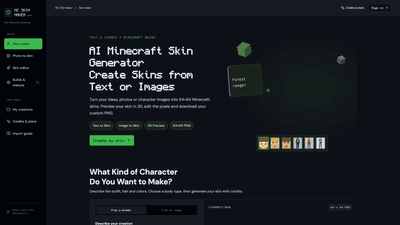
MC Skin Maker is an AI-powered Minecraft skin generator that transforms your ideas, photos, or character images into a classic 64×64 Minecraft skin PNG. The tool supports text-to-skin and image-to-skin workflows, offering a 3D preview to visualize how the skin looks from every angle before you download. It’s an independent, fan-made solution (not affiliated with Mojang or Microsoft) that lets you start from a description or a reference image, and then refine details in a built-in pixel editor. Generated skins can be downloaded as 64×64 PNG textures ready to import into Minecraft across Java and Bedrock editions, with options to edit or customize further.
Features
- Text to Skin: Describe a character’s outfit, hair, colors, and body type to generate a 64×64 skin PNG. Ideal for roleplay, NPCs, or thematic builds.
- Image to Skin: Use a photo or drawing as a reference to create a matching Minecraft skin texture.
- 3D Preview: Inspect the skin from the front, back, and sleeves with interactive rotation and zoom to ensure alignment before downloading.
- Pixel Editor: Open results in a free pixel editor for minor color tweaks or small pixel edits without generating a new skin (AI generation still costs credits).
- Arms Models: Choose between Classic (4-pixel-wide) and Slim (3-pixel-wide) arms to match your Minecraft arm model in-game.
- Downloadable Texture: Get a ready-to-use 64×64 PNG skin texture that fits Minecraft’s wrapping layout.
- Editing Options: Start from words, from an image, or edit by hand to achieve the exact look you want.
- Example Skins and Inspirations: Browse sample skins and interactive examples to spark ideas and color palettes.
- Education and Collaboration: Suitable for classrooms, teams, and streamers who need quick, coordinated skins.
- Independent Tool: A standalone solution for creative skin design with credits-based generation and no in-app affiliation to official Minecraft tools.
How to Use
- Sign in to access AI skin generation (credits-based) and explore pricing options.
- Pick a workflow:
- Text to Skin: Describe character concept (outfit, hair, main colors) and select Classic or Slim arms.
- Image to Skin: Upload a photo or drawing as reference; add a brief note if desired.
- Pixel Editor: Start with a generated skin or a reference and make precise pixel edits for color tweaks.
- Generate skin using credits (typical generation costs are 10 credits per skin). You can view and purchase credit packs as needed.
- Preview in 3D, rotating to inspect front, back, and sleeves. Confirm details before downloading.
- Download the 64×64 PNG skin texture. Ensure the arm model matches your in-game choice to keep sleeves aligned.
- Optional: Open the pixel editor for free, small edits. A new AI generation will require additional credits.
- Apply the downloaded skin in Minecraft (Java or Bedrock) by selecting the appropriate arm model to match your in-game configuration.
- Use multiple workflows to create cohesive sets (e.g., a team of skins with a shared color palette) and refine as needed.
Pricing
- AI skin generation uses credits. Each generation typically costs 10 credits, and you must sign in to generate.
- Free options exist for exploring and editing:
- Example skin downloads and manual edits are free.
- Editing in the pixel editor does not require credits for small changes.
- View and purchase credit packs through the platform. The site provides a clear path to balance your needs between AI generation and manual editing.
- Note: Prices and credit structures may vary; the platform emphasizes a credits-based model with the option to use free manual edits and browse examples.
Tips
- Start with a single, clear idea: character, outfit, and two to three colors. Simplicity helps the AI generate a more accurate base skin.
- Decide early on arm type (Classic vs Slim) and keep it consistent with your Minecraft in-game model to ensure proper sleeve alignment.
- Use a reference image if you have one. Image-to-skin tends to preserve recognizable features while applying Minecraft textures.
- Keep prompts concise: “A space traveler with short brown hair, white suit, blue gloves, and a gold visor” is typically more reliable than long, detailed lists.
- Check the 3D preview from multiple angles to catch color mismatches or awkward seams before downloading.
- Utilize the free pixel editor for minor tweaks (e.g., changing eye color or shirt shade) without spending more credits.
- For groups or teams, establish a simple color scheme and apply it consistently across prompts to achieve coordinated looks.
- If you plan to reuse skins across members, consider generating multiple variations with a shared palette to maintain a unified style.
Frequently Asked Questions
- Is MC Skin Maker free?
- Example skins and basic manual edits are free. AI-generated skins require credits and a sign-in. You can view credit packs to understand pricing.
- Will I get a skin file or just a character image?
- You download a 64×64 PNG skin texture (the actual skin file) ready to import into Minecraft.
- Does it work with Java and Bedrock?
- The downloaded PNG is designed to work with supported Minecraft platforms; ensure you select the correct arm model to align sleeves in-game.
- Can I edit the generated skin after creation?
- Yes. The built-in pixel editor lets you make small edits for free. If you want broader changes, you’ll typically generate a new skin using credits.
- How do I create matching skins for friends or a team?
- Use a shared color plan and generate individual skins with coordinated prompts. Minor manual edits may be needed to harmonize details across skins.
- Is this an official Minecraft tool?
- No. MC Skin Maker is an independent fan tool and not affiliated with Mojang or Microsoft.
- How should I start from text?
- Use the Text to Skin workflow, specify character, clothes, colors, and preferred arm model, then generate.
- Can I start from an image or photo?
- Yes. Use the Image to Skin workflow and describe any adjustments you want to apply.
- How do I preview before downloading?
- Use the 3D Preview to rotate and inspect the front, back, and sleeves from multiple angles.
- What kinds of skins can I create?
- You can create adventure skins, group skins with cohesive color schemes, and everyday looks. The tool also provides sample skins for inspiration.
This MC Skin Maker overview highlights how the AI-driven skin generator helps you rapidly turn descriptions or images into ready-to-use Minecraft textures. By combining text prompts, reference imagery, 3D visualization, and precise pixel editing, you can produce distinctive skins for individuals, teams, and storytelling campaigns—while managing costs through a credits-based system and flexible free editing options.