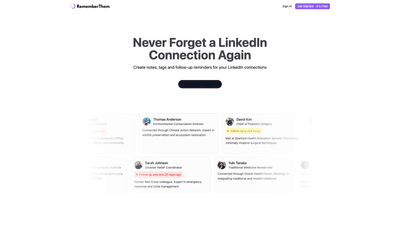
What is it
A Chrome extension designed to help you manage LinkedIn connections more effectively. Never forget a connection again by centralizing how you tag, annotate, and follow up with LinkedIn contacts. The tool sits alongside LinkedIn’s interface, enabling you to create notes, apply customizable tags, and set follow-up reminders for each connection. It’s built for professionals who want a lightweight CRM-like layer to streamline outreach, relationship-building, and timely follow-ups without leaving LinkedIn.
Features
- Tagging system for connections: Create and apply tags to contacts to categorize them (e.g., “education policy,” “potential partner,” “event lead”). Tags can be used to filter and organize your network, making it easy to find key groups at a glance.
- Per-contact notes: Add contextual notes to any LinkedIn connection. Capture insights from conversations, meeting outcomes, preferences, or next steps, all tied to the contact.
- Follow-up reminders: Schedule reminders for each connection so you never miss a beat. Reminders can indicate due dates (e.g., due today, overdue) and help you maintain consistent outreach.
- LinkedIn-integrated workflow: Access and manage notes, tags, and reminders directly within LinkedIn’s profiles and the extension panel, reducing switching costs and keeping your outreach organized.
- Lightweight, free-to-start model: The product emphasizes ease of onboarding with a free starting experience, so you can begin organizing your network right away.
- Quick search and filtering: Find connections by name, tag, or note content, enabling rapid retrieval when you need to reference past interactions or plan next steps.
- Privacy-aware approach: Clear emphasis on privacy policy and terms, with user control over how connection data is stored and used within the extension.
How to Use
- Install and sign in: Add the Chrome extension to your browser and sign in to your account to start syncing notes, tags, and reminders with your LinkedIn connections.
- Open a LinkedIn profile: While viewing a connection, use the extension to attach a note. Include context such as where the conversation left off, key interests, or action items.
- Create and apply tags: Add relevant tags to categorize the contact (for example, “digital literacy,” “event lead,” or “funding opportunity”). Apply existing tags to new contacts for consistency.
- Set follow-up reminders: Choose a due date for a follow-up (today, this week, or a specific date). The extension surfaces upcoming reminders so you can act on them in a timely manner.
- Review and manage: Use the extension’s panel to view notes, tags, and reminders across your network. Filter by tag or search by keywords to locate a specific contact quickly.
- Maintain the workflow: Regularly review overdue follow-ups, update notes after conversations, and refine tags to reflect evolving outreach goals.
- Pricing and access: Start with the free experience to test tagging, notes, and reminders. For detailed pricing and any paid tier features, refer to the product’s official pricing information.
Pricing
- Free-to-start access: The product advertises a free starting experience to get you going with notes, tags, and follow-up reminders.
- Paid plans: Specific pricing tiers and feature sets for any premium or Pro options are not detailed here. For the most current information, please consult the official pricing page or the product’s website.
- Note: Pricing details can evolve, so check the latest information to understand what’s included at each tier (limits on notes, tags, reminders, or team collaboration features, if any).
Tips
- Establish a tagging taxonomy: Create a small, consistent set of tags that reflect your outreach goals (e.g., role-specific tags, event sources, industry sectors). Consistency makes filtering and reporting far more effective.
- Link notes to outcomes: When you add notes, record concrete outcomes (e.g., “planned intro to partner,” “agreed to share resources”) to make follow-ups more meaningful.
- Schedule timely reminders: Set follow-ups close to the next action point (e.g., after a conference, after sending a resource, or before a scheduled meeting) to maintain momentum without nagging.
- Review regularly: Set aside a weekly or biweekly review to clear completed reminders, refresh notes, and adjust tags as relationships evolve.
- Respect LinkedIn terms and privacy: Use the tool responsibly and ensure you’re compliant with LinkedIn policies and your organization’s data privacy guidelines.
Frequently Asked Questions
- What is this tool for?
- It’s a Chrome extension that adds tagging, notes, and follow-up reminders to LinkedIn connections, helping you organize relationships and maintain timely outreach.
- Is it free to use?
- Yes, the product offers a free starting experience. For detailed pricing beyond the free tier, check the official pricing information.
- Does it integrate directly with LinkedIn?
- Yes, it works alongside LinkedIn profiles via the Chrome extension, enabling notes, tags, and reminders within the LinkedIn workflow.
- Is my data secure?
- Data privacy is addressed by the product’s Privacy Policy and Terms & Conditions. Review these documents to understand storage, security, and usage practices.
- Can I export my data or share notes with teammates?
- Specific data export and collaboration capabilities are not detailed here. Refer to the product’s feature list and privacy documentation for exact options.
- Is there a mobile app?
- The information provided focuses on a Chrome extension; there’s no explicit mention of a dedicated mobile app. Check the product page for mobile compatibility or companion apps.
- Can I use this with multiple LinkedIn accounts?
- The overview emphasizes individual connections management. For multi-account usage, consult the product’s setup guide or support resources.
- How do I get started?
- Install the Chrome extension, sign in, and begin adding notes, tags, and reminders to your LinkedIn connections. Start with the free tier and upgrade if you need more features.
This product offers a practical, organized approach to LinkedIn relationship management by combining notes, tagging, and reminders in a single extension. If you’re looking to streamline outreach, keep key connections active, and avoid missed follow-ups, this Chrome extension provides a focused solution that integrates directly into your LinkedIn workflow.