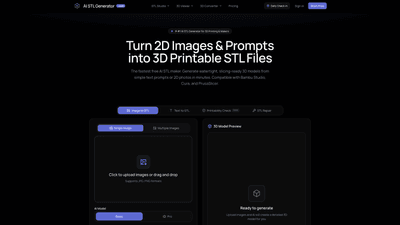
What is it
AI STL Generator is a cloud-based solution designed for 3D printing enthusiasts, tabletop designers, and makers who want to turn ideas into production-ready STL files fast. It converts both text prompts and 2D images into watertight, slicing-ready 3D geometries. The tool emphasizes models that are ready to print on FDM and resin printers, with automatic topology repair and printability checks to eliminate common slicer errors. It supports direct import into popular slicers like Bambu Studio, Ultimaker Cura, PrusaSlicer, and OrcaSlicer, eliminating the need for extensive cleanup in third-party software.
Key value: generate high-quality STL models that are ready to print, from simple prompts or sketches, with automated fixes and streamlined slicer integration.
Features
- AI Image to STL: upload 2D photos, concept art, logos, or line art and the AI reconstructs depth, volume, and topology to produce a solid 3D printable STL.
- Text to STL: describe what you want to print in natural language and the engine creates a detailed mesh from your description.
- Multi-Image Support: provide multiple angles to improve accuracy and detail in the reconstructed geometry.
- Printability Check & STL Repair: automatic checks for non-manifold edges, inverted normals, and zero-thickness walls, with instant repair to guarantee a 100% watertight, slice-ready mesh.
- Direct Export: export STL and GLB (and OBJ in some workflows) for immediate use in your slicer or visualization tools.
- Phase-Shifted Detail Levels: choose between Low Poly, High Poly, or Functional detail depending on the use case.
- Engineered for FDM & Resin: models are optimized for bed adhesion and minimal supports, with flat-bottom geometry that adheres to the build plate.
- Real-Time 3D Preview: inspect generated models in-browser before downloading.
- Remesh & Repair Editor: lightweight tools to adjust mesh density, simplify polygons, or flatten the base prior to export.
- Ecosystem Compatibility: seamless workflow with Bambu Studio, Ultimaker Cura, PrusaSlicer, OrcaSlicer, and other common slicers—no extra cleanup required.
- Free Daily Credits & Flexible Pricing: daily free check-in credits to generate STL files, plus pay-as-you-go packs and subscription plans for regular use.
How to Use
- Phase 1 – Input Idea (Text or Image)
- Provide a detailed text prompt or upload a clear 2D reference image (JPG/PNG).
- Select the target detail level (Low Poly, High Poly, or Functional) to match your printing needs.
- Phase 2 – AI Mesh Generation & Auto-Watertight
- The AI generates the 3D geometry and automatically repairs topology to ensure watertight, manifold geometry.
- Phase 3 – Download STL & Slice to Print
- Download the clean STL (and any supported formats) and import directly into your slicer (Bambu Studio, Cura, OrcaSlicer, PrusaSlicer, etc.) for slicing and printing.
Pricing is designed to accommodate different workflows:
- Free tier: daily free check-in credits to generate STL files without payment.
- Pay-as-you-go: flexible credit packs for occasional use.
- Subscriptions: plans for regular creators who need consistent access.
This streamlined three-step workflow is designed to minimize iteration time from idea to physical print, enabling fast prototyping and production-ready outputs without manual CAD cleanups.
Tips
- Start with a clear prompt or a high-quality reference image: the richer the input, the better the initial geometry.
- Use multiple angles for complex parts: multi-image support yields more accurate reconstructions, especially for mechanical components.
- Choose the appropriate detail level: Low Poly for simple parts or rapid prototyping; High Poly for detailed miniatures; Functional for parts with specific features.
- Leverage the printability check early: run the built-in check before exporting to ensure the model is truly printable.
- Favor flat-base designs where possible: flat-bottom geometry improves bed adhesion and reduces warping on both FDM and resin prints.
- Use the Remesh & Repair tool for post-generation tweaks: adjust density, simplify geometry, or flatten the base to fit your printer’s bed.
- Import directly into your slicer: the platform emphasizes zero-geometry-errors during export, so you can proceed to slicing without additional cleanup.
Frequently Asked Questions
- What can the AI STL Generator create STL files for 3D printing? It is specifically designed to generate 3D printable STL files from text prompts and 2D images, ensuring models are watertight, manifold, and compatible with popular slicers like Cura and Bambu Studio. This differs from generic 3D assets that may require extensive post-processing.
- Can STL files be created from images? Yes. You can upload JPG or PNG images, and the AI estimates depth and topology to form a solid 3D printable model in minutes.
- How do I make an STL file from an image using AI? Upload your image, let the AI compute the geometry, preview the model in the browser, and click Download STL. The file can then be imported directly into your 3D printer slicer.
- Is the AI STL generator free to use? Yes. You can log in daily to claim 5 free check-in credits to generate STL files without paying. There are also flexible pay-as-you-go credit packs and subscription plans for regular creators.
- Are the generated STL files watertight and ready to print? Absolutely. The platform includes automatic remeshing and sealing to produce 100% manifold, solid meshes that require no manual repair in other software.
- Can I edit the generated STL files? Yes. A built-in Remesh & Repair tool lets you adjust mesh density, simplify polygons, and flatten the base before exporting.
- Which slicers are compatible? Generated STL files import directly into Bambu Studio, Ultimaker Cura, PrusaSlicer, OrcaSlicer, and other common slicing software without extra cleanup.
- Do I need CAD skills to use this tool? No. The workflow is designed to minimize CAD barriers. You can create printable models from prompts or images with minimal or no CAD experience.
This AI STL Generator delivers a distinct value proposition: it turns ideas into production-ready STL models quickly, with automated printability Assurance, seamless slicer integration, and human-friendly inputs. By combining image-based reconstruction with text-to-design capabilities and automated repairs, it enables makers, educators, hobbyists, and small businesses to iterate rapidly and bring 3D printed creations to life with confidence.